
Can't Find Your Unit's S/N? Follow These Steps for Ford Connect 2015
Very important fact to know is that factory radios use a specific serial number to identify each unit.
The security system matches the code directly to the serial.
Unlike car-specific data like VIN or registration info, it is not determined by the model or production year, so you'll be able to retrieve it even if you have a radio that you bought afterwards.
Depending on the manufacturer and radio installed in your Ford Connect, the retrieval method varies.
These are the best ways to locate it.
2015 Connect - Which Radio Did You Get?
Carryover for the 2015 model year keeps the same lineup as the 2014 launch units, with no supplier change reported.
- Base AM/FM/CD single-DIN - fitted to XL trim cargo and wagon variants. Compact monochrome display, six hard preset buttons, no Bluetooth tile.
- AM/FM/CD with SYNC 1 - optional on XLT, standard on Titanium. Adds steering-wheel VOICE control and the small cluster screen for SYNC menus. The head-unit faceplate is shared with the base radio.
- Field test - if pressing the VOICE button on the steering wheel triggers a prompt, the vehicle has SYNC 1; SYNC units do not use a numeric unlock code.
View the Serial via the Radio Display
The method for 2015 Ford Connect is this:
The 2015 Ford Connect may be equipped with a Ford Sony or Ford 6000CD radio. Ford radios generally don't have an on-screen serial display function.
The serial number must be found from the physical label on the radio unit itself. Extraction of the radio is necessary. See instructions below.
Try this first (Ford 6000CD): Press and hold buttons 1 and 6 together for approximately 3 seconds. The radio cycles through system information — the serial (e.g., V197905) appears toward the end. If nothing appeared, try holding buttons 2 and 6 for the M serial variant. Certain SYNC or Sony units may not support this method — proceed with physical removal if the button combination doesn't work.
Occasionally the serial appears split across two screens — join the two halves to get the full serial.
Accessing the Serial Number Through the Radio Menu
The non-SYNC base radio in the 2015 Transit Connect exposes the chassis serial via the long-standing Ford preset hold combination. SYNC 1 units do not surface a serial through any user-accessible menu.
Base AM/FM/CD (non-SYNC)
- Set the ignition to ACC so the radio is energized but the engine is not running.
- Press and hold preset 1 and preset 6 together.
- While holding both presets, press POWER to switch the unit on.
- Release the buttons once a short identifier and the serial appear on the display.
- Record the full string exactly as shown; the leading letter is part of the serial and must be submitted.
Serial Number on the Unit
If the serial does not appear on screen, the next step is checking the radio itself.
Many Ford radios require physical access to the serial sticker attached to the unit.
Typical approach:
- Start by completely turning off the engine - pull the key out.
- Then detach the radio surround.
- Next, loosen the mounting points and pull the radio forward.
- Look for a printed tag showing the serial number.
To retrieve the serial on the 2015 Ford Connect:
- Turn off the vehicle.
- For Ford 6000CD/4500: Use Ford release keys in the four pin holes on each side of the radio. Push until they click, then pull the unit forward.
- For SYNC/Sony integrated units: Remove the center stack trim with a trim removal tool, then unscrew the four bolts and slide the unit out.
- Read the serial number label on the rear of the unit. It starts with M or V.
Tip: Vehicles with SYNC may have a heavier unit. The SYNC units are typically screw-mounted rather than pin-released.
Locate Serial on Connect's Radio Chassis
When the screen method is not accessible, the printed serial label on the radio chassis is the next reliable source.
Mandatory safety steps: ignition off, key removed, negative battery terminal disconnected. Wait several minutes before working around the dash and avoid any yellow airbag connectors.
- Tools: set of four Ford DIN release keys, plastic trim removal tool, flashlight, camera/phone.
- Insert the four release keys into the small holes on the radio faceplate (two per side).
- Push each key in until you feel the internal clip release.
- Apply gentle outward pressure on the keys to slide the head unit forward out of its DIN cage.
- Disconnect the antenna lead and the main wiring harness before fully removing the unit.
- Inspect the label on the top or side of the chassis for an
S/NorSerialfield. - Photograph the label, then verify each character; uppercase O looks similar to digit 0, and uppercase I looks similar to digit 1.
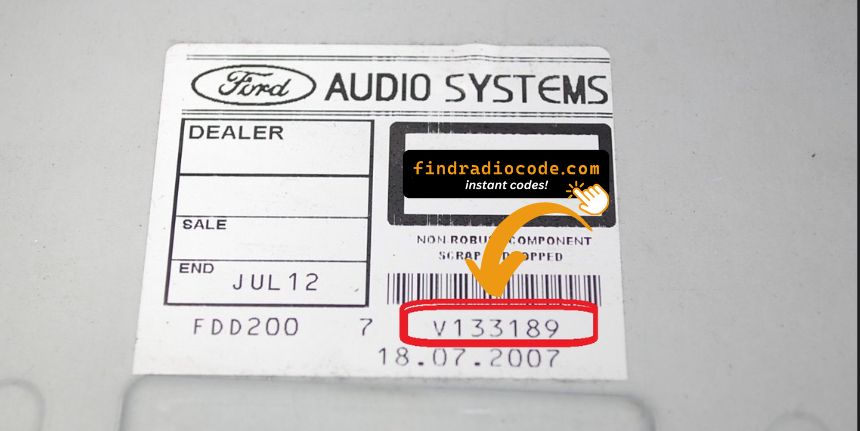
Example: Ford Connect serial number label location
How Serial Numbers Usually Look on These Connect Radios
The 2015 Ford Connect radio serial number pattern:
M######– Most common Ford serial prefixV######– Alternate serial prefix
Radio types for the 2015 Connect: Ford 6000CD (base), Sony (premium), Ford SYNC (with Bluetooth). Regardless of radio type use the same M or V format.
Reminder The serial is 7 characters total. Only the M or V serial is needed for code retrieval.
Common S/N Formats Used on 2015 Connect Units
Serial structure follows the radio supplier convention, which on the 2015 base unit matches other Ford single-DIN head units of the period.
- Typically a single letter prefix - commonly M or V - followed by six digits.
- Total length is usually seven characters as shown on the chassis sticker.
- Label fields use
S/N,Serial, orSN. - Do not confuse the serial with the long Ford engineering part number (DT1T-.. format).
- Use uppercase characters only when submitting; double-check 0 vs O and 1 vs I.
SYNC 1 head units in this trim do not use a user-enterable 4-digit code.
How Serial-Based Ford Connect Radio Unlock Works
- Skip long troubleshooting discussions or service visits - you can retrieve the code online using the radio S/N.
- Identify the serial number. The best place to search is on the unit itself, and in some cases you can see it on the Connect's radio screen.
- Type it into the field above, and our software will calculate the correct 2015 Connect unlock code.
- When you receive the code, type it in using Connect's radio controls to unlock the system fully.
- The entire process takes less than a minute for most users and requires minimal effort.
Got the Code? Here's How to Enter It
Now that you've generated 2015 Ford Connect anti-theft code from the serial number, you're ready to reactivate the radio.
Many drivers get stuck at this stage because input process can look different across radio versions, but it's usually quick.
When the radio shows CODE, it means the unit is waiting for the correct numbers.
Detailed Entering Instructions for Connect 2015
To input the code on the 2015 Ford Connect:
- Ignition ON. Radio shows "CODE" or "SAFE".
- Press buttons 1-4 to set each digit of the 4-digit code. Each press cycles the digit.
- Press button 5 (or OK) to confirm the code.
Lockout: 10 wrong attempts causes "LOCKED" or "WAIT". Leave the radio switched on for up to 1 hour — it will return to the code prompt automatically. If "Locked 10" appears, try holding button 6 while switching the radio on for additional attempts.
Correct Entering Process
For the non-SYNC base radio in the 2015 Transit Connect, the 4-digit code is entered using the preset buttons in a defined sequence. Confirm the code is correct before the first attempt.
Limited Attempt Warning: Ford radios of this generation typically allow only a few incorrect attempts before forcing a long lockout interval. Never guess digits.
- Turn the ignition to ACC and wait for
CODEto appear on the display. - If
WAITshows instead, leave the ignition on untilCODEreturns. - Press preset 1 as many times as the value of the first digit of the code.
- Press preset 2 for the second digit, preset 3 for the third, preset 4 for the fourth.
- Press and hold preset 5 (or the marked confirm/enter button) until the radio accepts the entry.
- If the unit shows
WAITagain after an incorrect entry, do not retry until it clears.
Why Did the Radio Lock and Ask for a Code?
Ford SYNC 1 and Sony-branded radios of this era include the same power-loss anti-theft system as older Ford radios. Any interruption in battery power engages the lock at next startup:
- Battery replacement or disconnect — the most common cause.
- Dead battery — a fully drained battery triggers the code prompt just like a manual disconnect.
- Radio removal — taking the radio out for service cuts the power connection, triggering the lock when reinstalled.
Worth mentioning: SYNC 1-integrated systems (with Bluetooth) can also lock after a battery event, even though SYNC the connectivity system is separate from the radio anti-theft. Supplying the correct code restores the radio; SYNC itself usually reconnects automatically once the radio is back to normal.
Understanding Unlock Issues with Your Connect
On these Ford radios, a rejected code most often caused by the wrong serial being submitted. Sony premium audio units cannot display the serial — it must be read from the label on the radio chassis. Make sure the serial begins with M or V and is exactly 7 characters long.
If the code was rejected, avoid entering further attempts — 10 tries are available before a lockout. Reach out for a no-charge reverification to confirm the serial before retrying.
SYNC 1 and Sony radios from this era carry the same serial format as all Ford OEM radios:
M######— M followed by six digits (most typical format).V######— V followed by 6 digits (found on Visteon-supplied modules).
These radios do not have an on-screen serial display — the serial can only be read from the sticker on the unit casing, which requires extracting the radio. Refer to the removal section above for step-by-step instructions. The part number on the same label (e.g., AM5T-18C815-...) must not be submitted as the serial.
Ford SYNC 1 and Sony-era radios employ preset buttons 1–4 for digit entry and button 5 (or OK) to confirm — identical to the older Ford 6000CD platform:
- Buttons 1–4 — press each repeatedly to advance through digits for that slot in the 4-digit code.
- Button 5 or OK — press to confirm the complete entry.
For SYNC-integrated units with a small LCD display, the entered digits appears on screen as you press — this makes it easy to verify each digit before confirming. Sony premium units work the same way.
If the Ford SYNC 1 or Sony radio powers on without showing a "CODE" prompt:
- The unit might not be code-locked — try normal radio and audio operation first.
- Some SYNC 1 units show "SAFE" momentarily before the code screen — allow a few seconds for it to change to the full code entry screen.
- For Sony premium audio trims: the startup logo may appear first before the code prompt — wait 5–10 seconds for the system to fully boot.
A blank screen typically indicates a power or fuse issue rather than a lockout. Inspect the radio fuse in the under-dash panel prior to further troubleshooting.
Ford SYNC 1 and Sony-equipped radios go into lockout after 10 incorrect entries. To recover:
- Leave the radio switched on — do not turning it off during the wait.
- Wait up to 1 hour. The radio should automatically return to the "CODE" prompt.
- Should "Locked 10" appears, try holding button 6 while switching the radio on to get 3 more attempts.
If the radio remains stuck in LOCKED after waiting the full hour, a dealer visit or module replacement could be required.