Can't Find Your Radio Serial Number? Follow The Steps Below for Honda Civic 2016
The starting step is finding the radio serial.
Most people assume the code depends on the Honda model or year, but in reality, the whole process relies on the unique radio unit's serial number.
This number identifies the exact head unit installed in your Honda Civic.
This is actually better, because if you have a used radio, the VIN or other Honda-specific data wouldn't help.
Based on the radio version used, you can see the serial directly from the screen or by looking at the label on the radio chassis.
2016 Honda Civic factory radios
The 2016 Civic launched the 10th generation (FC sedan / FK hatchback platform arriving later) with two distinct head-unit tiers tied to trim:
- 5-inch Display Audio (LX trim) - color LCD with hard buttons and a single rotary knob, Bluetooth HandsFreeLink, single USB, rearview camera. No touchscreen and no Apple CarPlay or Android Auto on the 2016 LX.
- 7-inch Display Audio with HondaLink (EX, EX-T, EX-L, Touring) - WVGA capacitive touchscreen, HondaLink, SiriusXM and HD Radio on upper trims, dual USB. Apple CarPlay and Android Auto were generally added with the 2017 model-year refresh, so most 2016 7-inch units shipped without smartphone projection.
- Touring adds Garmin-based Honda Satellite-Linked Navigation built into the 7-inch unit and a 10-speaker premium audio setup.
Both head units are anti-theft protected and demand a 5-digit unlock code after any battery disconnect, fuse pull, or head-unit swap.
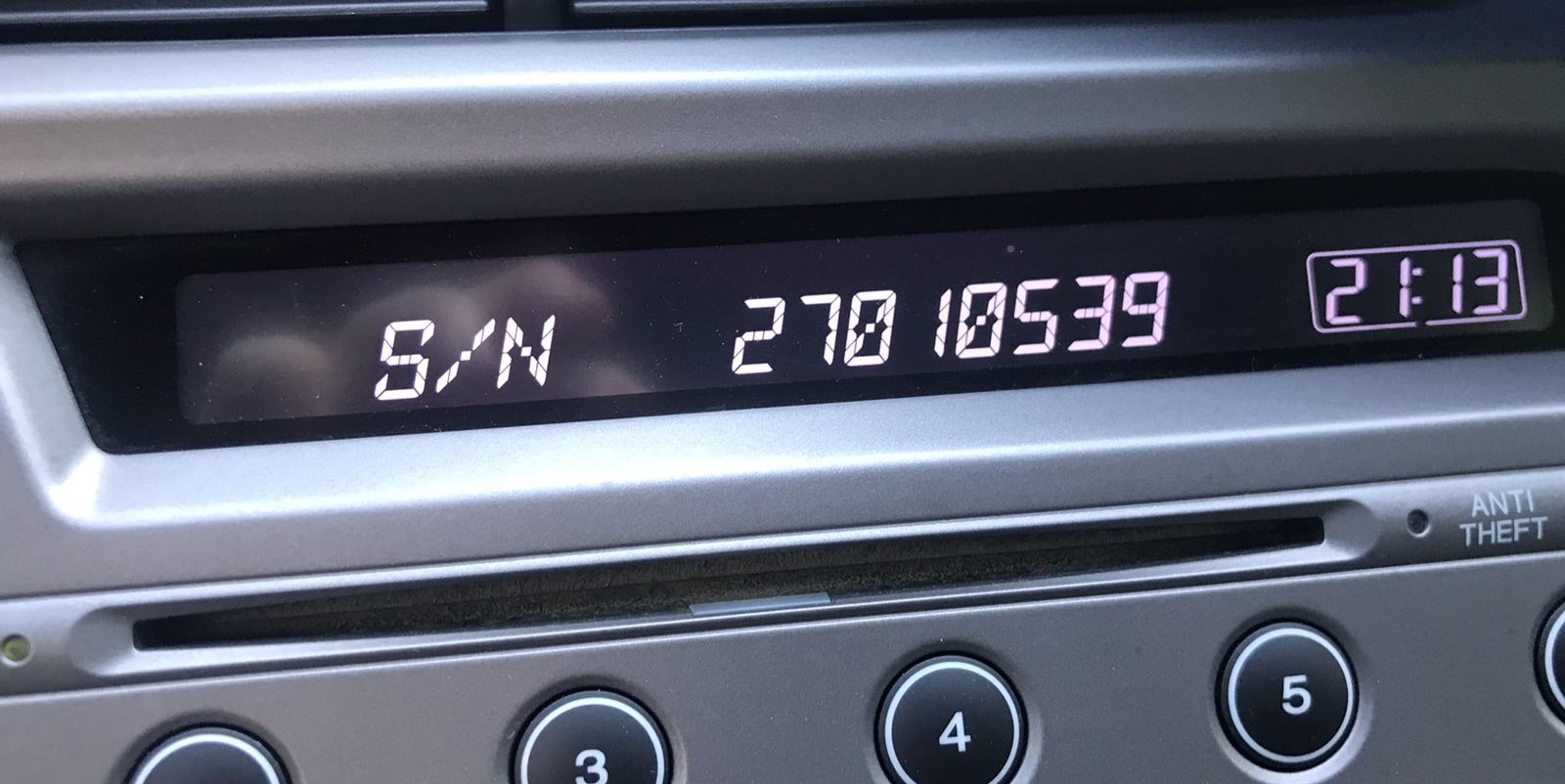
View the S/N via the Radio Display
These are the steps you need to follow for 2016 Honda Civic:
The 2016 Honda Civic may feature Honda's Display Audio touchscreen (5" depending on trim) or a base non-touchscreen radio. All versions support serial number retrieval via the 1+6 button method:
- Turn ignition to ON. Wait for the radio to boot. The screen shows "CODE" when locked.
- Hold down preset buttons 1 and 6 for approximately 3-5 seconds.
- The serial number shows in two halves (e.g.,
U3210+L0482).
Alternative: On 2016 Civic with the Display Audio touchscreen, check Settings → System → Device Information – the serial may be shown there without needing the button combination.
Manufacturer Label Inspection
If the serial does not appear in menu, the next step is checking the radio itself.
Many Honda radios require physical access to the serial tag attached to the unit.
Common approach:
- Start by completely shutting off the engine - pull the key out.
- Then detach the radio surround.
- Next, release the mounting points and slide the radio forward.
- Look for a factory sticker showing the serial number.
If neither methods display the serial on the 2016 Honda Civic:
- Power down the vehicle.
- Detach the center stack trim panel. The 2016 Civic's integrated dashboard uses snap-fit clips.
- For Display Audio models: Remove the mounting screws (Phillips) securing the screen unit.
- On base trims: Remove the 4 Phillips screws holding the head unit.
- Pull the unit forward and read the serial on the sticker on the chassis.
Tip: The touchscreen unit is larger and more tightly fitted than the standard radio. Take care when extracting it.
Removing the head unit on a 2016 Honda Civic
Safety first. Disconnect the negative battery terminal and wait several minutes before working around the dash to avoid SRS (airbag) faults. Note that disconnecting the battery is exactly what locks the radio in the first place, so only remove the head unit if you genuinely need physical access.
- Work the lower edge of the center dash bezel free first - the 10th gen bezel uses spring clips that release when you lift the lower section upward and then pull the panel toward you.
- Use plastic trim tools or a wrapped 3-inch putty knife. Do not pry with a metal screwdriver against the soft-touch dash material - it scars easily.
- The integrated touchscreen sits inside the bezel, so support the assembly as it comes loose and unplug the ribbon and antenna connectors before fully removing it.
- The narrow silver/gloss trim ring around the screen pops off only after the audio unit is out, not before - trying to lift it first usually breaks the clips.
- Four small Phillips or Torx screws hold the head unit chassis to the dash sub-frame; back them out evenly so the unit slides straight forward.
If you only need the serial, you do not have to remove anything - the on-screen 1+6 method below pulls it without tools.
Example: Honda Civic serial number label location
Common Serial Number Structures
Depending on the radio installed in the 2016 Honda Civic:
U1234L5678– Most common Honda OEM formatHBM####– Used in Display Audio and nav-equipped units913A####– Some Alpine-manufactured radios
The 2016 Civic may have: base CD radio (U/L format), Display Audio 5"/7" (HBM format), or navigation unit (HBM format). All use a 5-digit unlock code.
Important Verify you copy the serial number, not the part number (which starts with 39100, 39101, or similar Honda part coding).
2016 Civic radio serial format
Honda 10th-gen Civic head units typically display an 8-character alphanumeric serial - mixed letters and digits, no dashes or spaces. You may see formats beginning with letter-digit prefixes such as U or T followed by digits and letters. Read the serial carefully off the screen and double-check zeros versus the letter O, ones versus the letter I, and fives versus S; a single mistyped character will route you to the wrong code.
How 2016 Honda Civic Radio Code Lookup Works
- Instead of contacting Honda dealer or searching forums you can retrieve the code online using the radio S/N.
- Start by finding your radio's serial. You will always find it on the unit itself, and sometimes it can be visible on the Civic's display.
- Enter it into the form above, and our system will retrieve the correct 2016 Civic unlock code.
- When you receive the code, type it in using Civic's radio controls to release the blockade successfully.
- The entire process takes less than a minute for most users and requires no VIN, documents, or technical knowledge.
How to Enter the Radio Code
After generating the correct unlock code based on the S/N, you can restore normal functionality by entering it into the unit.
The code entry process depends on the radio interface, but most 2016 Civic systems follow a similar structure using preset buttons, touch controls, or rotary knobs - depending on if it's a factory or an aftermarket unit.
You will typically see SAFE displayed on screen.
Step-by-Step - Correct Entering Process
To enter the code on the 2016 Honda Civic:
- Ignition ON. Radio shows "CODE" or "ENTER CODE".
- Non-touchscreen models: Use preset buttons 1-5 to select each digit, then press and hold button 6 to confirm.
- Display Audio touchscreen: An on-screen keypad is displayed. Tap each digit and press "Enter" or "OK".
Lockout: 3 wrong entries trigger a 60-minute lockout. Leave ignition ON. Don't cycle the key or the timer starts over.
Entering the 5-digit code on a 2016 Civic
- Turn the ignition to ON (or push START twice without the brake) so the radio powers up and shows
CODEor a 5-digit entry prompt. - Use preset buttons 1 through 6 on the touchscreen keypad (or hard buttons on the 5-inch unit) to dial in each digit - Honda codes use only the digits 1-6.
- Confirm with the Enter / arrow / Done button. The radio resumes normal operation immediately if the code is correct.
- If the unit refuses several wrong codes it will lock for roughly one hour. Leave the ignition ON during the wait - cutting power resets the lockout timer.
Fixing Common Code Entry Problems for 2016 Civic
Entry method depends on the specific radio in the Display Audio-era Civic:
- Non-touchscreen base radio: Press preset buttons 1–5 to cycle to each digit, then hold button 6 to confirm — identical to older Honda platforms.
- Display Audio 5" or 7" touchscreen: An on-screen numeric keypad is shown when the code prompt is active. Tap each digit and press OK or Enter on screen.
If the touchscreen is unresponsive, attempt the physical preset buttons — certain units support either input method. Make sure the screen is fully powered on before starting entry.
If the Display Audio screen powers on but shows the home screen without any "CODE" display, consider these points:
- Anti-theft may not have triggered — some battery changes don't trigger the lock if done quickly enough.
- Certain Display Audio units, the code prompt shows only on the audio portion of the screen, not the navigation display — wait a moment after startup.
- Check the Settings → System → Device Information route; should the serial appear, the unit may still be functional without a code.
Should none of the above match, a fuse check is the next step — a blown fuse will stop the radio from powering on at all.
The Display Audio platform uses the same 3-attempt lockout as earlier Honda radios. To recover:
- Maintain the ignition in ON or ACC — do not switch off.
- Wait out the full 60-minute period. The touchscreen might dim during this time — that's normal.
- After 60 minutes, the radio re-displays "CODE" and another attempt is possible.
For touchscreen units, the lockout countdown operates even when the screen is off. Simply leave the vehicle running or the ignition on ACC for the full hour.
On the Display Audio, a rejected code usually points to the serial was taken from the wrong source. Both the button method and the settings menu can produce the correct serial — verify that the serial you submitted came from the radio itself and not from an online database.
After one failed entry, pause and contact support before trying again — a second wrong attempt gets you one step closer to the 60-minute lockout. A free serial reverification is available on request.
The Display Audio era spans radios using multiple serial prefixes depending on which unit was fitted:
U####L####— base CD radio serial (10 characters, two halves).HBM####— Display Audio 5"/7" and navigation units.913A####— some Alpine OEM configurations.
Part numbers printed nearby begin with 39100 or 39101 — these are not serials. If uncertain, use the Settings → Device Information menu or the 1+6 button method to pull the serial directly from the radio.
Why Did the Radio Lock and Ask for a Code?
Honda's Display Audio system uses the same anti-theft design as earlier radios: losing battery power activates a code request at next startup. This affects both the base radio and the Display Audio unit.
- Battery replacement — the usual culprit.
- Battery disconnect during repairs — any work that cuts battery power will re-engage the lock.
- Completely dead battery — a fully discharged battery has the same result.
Note: a number of higher-trim Display Audio models from this era do not use a traditional code-based lock — if the radio never showed "CODE" after losing power, it could have a different anti-theft method tied to the vehicle VIN.