
Radio Serial Number Explained - Finding It on Your Ford
The important fact to know is that factory radios use a specific serial number to identify each unitindividually.
Your anti-theft system matches the code directly to the serial.
Unlike vehicle-specific data like VIN or registration info, it is not determined by the model or production year, so you'll be able to retrieve it even if you have a radio that you installed afterwards.
Depending on the maker and radio installed in your Ford C-Max, the access method is different.
These are the most reliable ways to locate it.
Radios Offered in the 2016 C-Max
- Ford 6000 CD - single-DIN CD head unit, remaining base fitment on lower trims in some markets.
- Ford SYNC 2 (MyFord Touch) - 8-inch capacitive touchscreen with the four-quadrant interface.
- Ford SYNC 3 - new for selected late-2016 cars, identified by five icons along the bottom of the touchscreen and CarPlay/Android Auto support.
2016 is the transition year between SYNC 2 and SYNC 3; both can be present in the field depending on build date and market.
Find Your Serial Number via the Radio Screen
Try the following for your 2016 Ford C-Max:
The 2016 Ford C-Max may have a Ford SYNC or Ford 6000CD radio. These units generally do not include an on-screen serial display method.
The serial number must be located from the physical label on the radio unit chassis. Partial removal of the radio is required. See instructions below.
Try this first (Ford 6000CD): Press and hold buttons 1 and 6 together for 2–3 seconds. The radio cycles through system information — the serial (e.g., V197905) is shown last. If no serial showed, try holding buttons 2 and 6 for the M serial variant. Certain SYNC and Sony units might not respond to this method — proceed with physical removal if the button combination doesn't work.
On some units the serial appears split across two screens — combine both parts to get the full serial.
Display-Based Serial Number Retrieval
The 6000 CD in 2016 Mk2 C-Max cars typically exposes the serial via a hidden self-test screen.
Ford 6000 CD
- Set the ignition to accessory and switch the radio on.
- Press and hold preset 1 and preset 6 together for several seconds.
- Watch the display cycle through internal data and read the serial line; it typically begins with V.
- If the display does not change, the hidden mode is disabled on that build and the unit must be removed.
Ford SYNC 2 and SYNC 3 are VIN-paired and do not expose a user-entry radio code on screen. The ESN shown in the About SYNC menu is for navigation map updates, not for a user-entry unlock code, so this display method does not apply to SYNC 2/3 cars.
Locate Serial on C-Max's Radio Chassis
If the serial number cannot be accessed via display, use the hardware method.
Most Ford C-Max OEM radios include a tag with the serial number printed on the housing.
Step-by-Step Approach:
- Turn off the vehicle.
- Remove the dashboard frame surrounding the radio.
- Unscrew the fasteners.
- Slide the unit outward to access the label.
The serial number is usually located near the barcode.
To access the serial on the 2016 Ford C-Max:
- Turn off the vehicle.
- For Ford 6000CD/4500: Use extraction keys in the four pin holes on both sides of the radio. Push until they click, then slide the unit forward.
- For SYNC/Sony integrated units: Remove the dashboard bezel with a trim removal tool, then remove the 4 screws and slide the unit out.
- Read the serial number label on the side of the unit. It begins with M or V.
Tip: Vehicles with Sony premium audio may have a larger display module. The SYNC units are usually bolt-mounted rather than pin-released.
Pulling Out the Radio Unit to View the S/N on the Tag
When the display method is unavailable on the 6000 CD, the single-DIN unit releases from the DIN cage using Ford extraction keys.
Safety: ignition off, key removed, disconnect the negative battery terminal, wait a few minutes. Avoid yellow SRS connectors behind the dash trim.
Tools needed:
- Ford U-shaped radio extraction keys (set of four).
- Plastic trim removal tool.
- Flashlight and a phone camera.
- Insert one extraction key into each of the four side slots until the internal clips release.
- Pull both pairs of keys outward in parallel to slide the radio forward.
- Disconnect the antenna lead and the rear connector only after the chassis is clear of the cage.
- Read the serial sticker on the top or left side of the metal chassis - look for S/N or Serial.
- Photograph the label and double-check 0 vs O and 1 vs I before transcribing. The unlock code is not printed on the unit.
Ford SYNC 2 and SYNC 3 are multi-piece integrated infotainment systems (APIM, 8-inch display module, media hub) that are VIN-paired. Removal is complex and is not required for a user-entry radio code; consult a Ford service technician for any SYNC 2 or SYNC 3 hardware work.
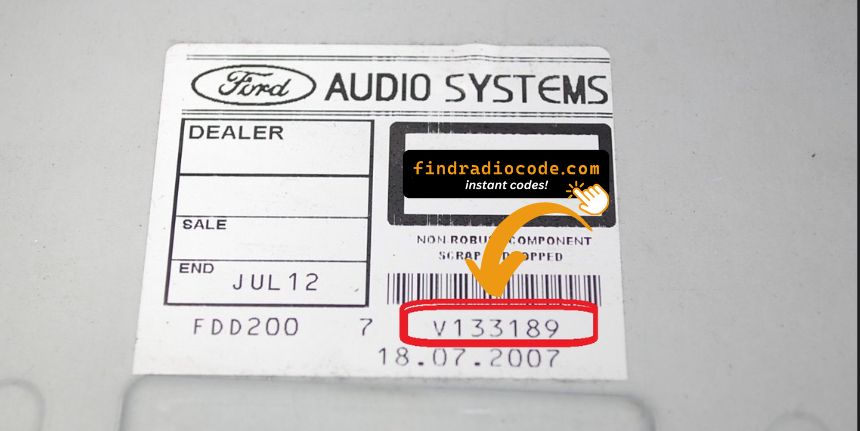
Example: Ford C-Max serial number label location
S/N Patterns and Prefixes
The 2016 Ford C-Max radio serial number format:
M######– Standard Ford serial prefixV######– Visteon serial prefix
Radio types for the 2016 C-Max: Ford 6000CD (base), Sony (premium), Ford SYNC (with Bluetooth). All versions use the same serial format.
Reminder The serial is the prefix letter plus 6 digits. Just the M or V serial is needed for code generation.
Typical Serial Number Formats for 2016 C-Max Radios
The serial layout is set by the supplier of the head unit, not by Ford. Verifying the expected pattern keeps the wrong field off the form.
- Ford 6000 CD: typically a V prefix followed by six characters.
- Ford SYNC 2 and SYNC 3: VIN-paired, no manual user-entry code applies. The ESN seen in the About SYNC menu is for navigation map updates and is not a user-entry unlock code.
- Validation: take the line marked S/N or Serial, ignore the part number, and recheck 0 vs O and 1 vs I before submitting.
How Serial-Based Ford C-Max Radio Unlock Works
- Instead of contacting Ford dealer or searching forums you can generate the code online with the radio S/N.
- Start by finding your radio's serial. The best place to search is on the unit itself, and in some cases you can see it on the C-Max's display.
- Enter it into the form above, and our system will generate the correct 2016 C-Max unlock code.
- After receiving your code, input it using C-Max's radio controls to unlock the system successfully.
- The entire process takes only a few minutes and requires minimal effort.
How Code Entry Works on Your Ford Radio
After locating the S/N and generated the unlock code, the final part is entering it into your radio.
Ford factory radios display a ENTER CODE message when ready for input.
The process is straightforward, but button layouts and confirmation methods may vary depending on the radio version installed in your C-Max.
Correct Entering Process
To enter the code on the 2016 Ford C-Max:
- Ignition ON. Radio shows "CODE" or "SAFE".
- Press buttons 1-4 to set each digit of the 4-digit code. Each press cycles the digit.
- Press button 5 (or OK) to submit the code.
Lockout: 10 wrong entries causes "LOCKED" or "WAIT". Leave the radio switched on for up to 1 hour — it will return to the code prompt automatically. Should "Locked 10" appears, try holding button 6 while switching the radio on for 3 more attempts.
Step-by-Step Code Input Guide
Enter the four-digit code carefully on the 6000 CD head unit. Digits are selected with preset 1 to 4 and the entry is confirmed with preset 5.
Limited Attempt Warning: the Ford 6000 CD allows ten total attempts. After ten incorrect entries the display reads LOCKED 10 and a hidden bypass releases three further attempts; failing those triggers LOCKED 13, a permanent user-level lock.
Ford 6000 CD
- Set the ignition to accessory and switch the radio on.
- Wait for the CODE - - - - prompt.
- Press preset 1 repeatedly until the first digit is shown.
- Press preset 2 for the second digit, preset 3 for the third, and preset 4 for the fourth.
- Press preset 5 to confirm.
- If WAIT or CODE INCORRECT PLEASE WAIT is shown, leave the radio on with ignition in accessory until the wait state clears - do not retry during that interval.
Ford SYNC 2 and SYNC 3 are VIN-paired and do not use a manual user-entry code; these steps do not apply to a SYNC 2 or SYNC 3 system.
Why Is the Radio Asking for a Code?
Ford SYNC 1 and Sony-branded radios of this era include the same power-loss anti-theft system as older Ford radios. Any cut in the power supply activates the lock at next startup:
- Battery replacement or disconnect — the usual cause.
- Dead battery — a fully drained battery activates the code prompt the same as a manual disconnect.
- Radio removal — removing the unit for service cuts the power connection, triggering the lock when reinstalled.
Note: true Ford SYNC 1 systems (with Bluetooth) may also require a code after a battery event, even though SYNC itself is separate from the radio anti-theft. Entering the correct code re-enables the radio; SYNC itself usually reconnects automatically once the radio is unlocked.
Understanding Unlock Issues with Your C-Max
Ford SYNC 1 and Sony-equipped radios display "LOCKED" after 10 incorrect entries. To recover:
- Leave the radio switched on — do not turning it off during the wait.
- Allow up to 1 hour. The radio will automatically return to the "CODE" display.
- Should "Locked 10" appears, try holding button 6 while switching the radio on to receive 3 more attempts.
Should the unit remains stuck in LOCKED after waiting the full hour, a dealer visit or unit replacement may be needed.
On these Ford radios, a rejected code most often caused by the wrong serial being submitted. Sony premium audio units do not show the serial — it must be read from the physical sticker on the unit. Make sure the serial begins with M or V and is exactly 7 characters long.
If the code was rejected, avoid entering further attempts — ten attempts are available before a lockout. Reach out for a free recheck to confirm the serial before retrying.
Ford SYNC 1 and Sony-era radios use preset buttons 1–4 for digit entry and button 5 (or OK) to confirm — same as the older Ford 6000CD platform:
- Buttons 1–4 — press each repeatedly to advance through digits for that position in the 4-digit code.
- Button 5 or OK — press to confirm the complete entry.
On SYNC 1 units that also have a small LCD display, the current digit appears on screen as you press — this makes it easy to verify each digit before confirming. Sony premium units work the same way.
If the Ford SYNC 1 or Sony radio powers on without displaying a "CODE" prompt:
- The unit might not be code-locked — try normal radio and Bluetooth operation to confirm.
- Some SYNC 1 units display "SAFE" briefly before the code screen — allow a few seconds for it to change to the full code entry screen.
- On Sony-equipped trims: the Sony branding screen often shows first before the code prompt — wait several seconds for the system to fully boot.
A blank screen usually suggests a power or fuse issue rather than a lockout. Inspect the radio fuse in the under-dash panel prior to further troubleshooting.
Ford SYNC and Sony radios from this era carry the same serial format as all Ford OEM radios:
M######— M followed by 6 digits (most typical format).V######— V followed by 6 digits (used on Visteon-supplied units).
These radios have no an on-screen serial display — the serial can only be read from the physical label on the unit casing, which means partially removing the radio. Refer to the removal section above for step-by-step instructions. The part number on the same label (e.g., AM5T-18C815-...) must not be submitted as the serial.